
ITSAI / MANUAL
From creating an account
to everyday operation.
Follow it in order even if this is your first crypto exchange.
Search for what you need or jump in from the contents.
Updated 2026-09-29 · Windows · private beta · English UI since v1.2.16 (Settings → Run → Display → Language, then restart). Screenshots below show the Korean UI; labels match this manual.
No results. Try another keyword.
01 / WHAT IS IT
What is Hyperliquid
At a centralised exchange, a company holds your money and you trade after logging in. Hyperliquid is an exchange you access with a wallet. Instead of entrusting funds to a company, you trade directly from your wallet and the order history is recorded on a blockchain.
This program uses Hyperliquid for two reasons.
- Programmatic trading is officially supported. You can create an order-only key for automation without any approval process.
- US stocks can be traded too. There are perpetual contracts that track the prices of names like Apple and Nvidia. You do not own the underlying shares.
What you trade here are leveraged derivatives. If price goes against you, you can lose your entire principal or be liquidated. Start with an amount whose loss would not affect your life. This document is not investment advice and does not promise returns.
02 / PREPARE
What you need
| Item | Notes |
|---|---|
| Windows PC | Must be able to stay on 24 hours a day with sleep mode disabled. |
| Email address | Used to log in to Hyperliquid. Use one you check regularly. |
| An exchange or on-ramp | Somewhere to buy USDC with fiat and send it out to your own wallet address. |
| Starting capital | We suggest 100–300 USD to begin. Do not start big. Each strategy has a recommended minimum account (at default allocation and leverage): 4H Trend, Dual Thrust and US Stock RS 100 USD; Crash Buy 150 USD; PVWAP 200 USD; Weekly Momentum 600 USD. Below that, per-coin orders can fall under the exchange minimum (10 USD) and simply not enter. |
If the PC turns off or loses internet, signal evaluation and new orders stop. Limit buys already resting on the exchange (PVWAP, the second Crash Buy leg) stay there and can still fill. When they fill, the stop-loss placed with them (and PVWAP's take-profit) works on the exchange, but actions the strategy decides itself — cancelling stale orders, time-based exits — only happen while the program is running. Check open orders in the official Hyperliquid app before shutting the PC down.
02-1 / WHY HYPERLIQUID
Is Hyperliquid trustworthy
ITSAI Terminal places its orders on Hyperliquid. For anyone hearing the name for the first time, here is where your money sits and who controls it, facts first.
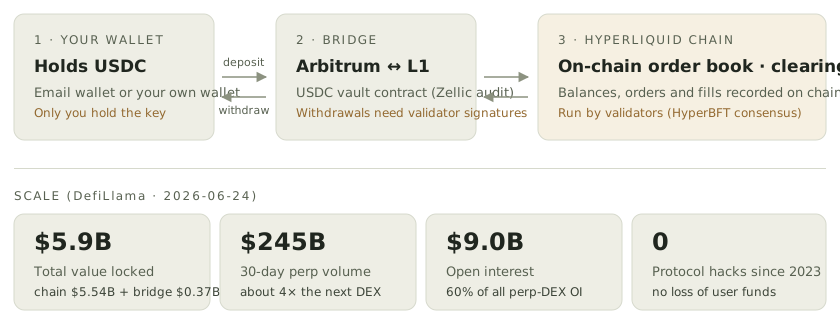
Why it is considered relatively safe
- Non-custodial — deposited USDC is not held by a company; it is the balance of your own wallet address on the Hyperliquid blockchain. Withdrawals require your wallet key (email verification for an email wallet); the operator, ITSAI, cannot touch it.
- An order book where everything is recorded — orders, fills and balances live on chain and anyone can verify them, unlike a centralised exchange's internal ledger.
- Scale and track record — per DefiLlama (2026-06-24): about $5.9B in total value locked, about $245B in 30-day perp volume and about $9.0B open interest, the largest decentralised perp exchange (roughly 4× the next one). No protocol hack or loss of user funds since launch in 2023.
- Audits and consensus — the bridge contract that moves assets was audited by Zellic (reports published in the official docs), and USDC itself is audited by its issuer Circle. The chain is run by multiple validators under HyperBFT consensus (27 active validators as of August 2026).
Risks you should still know
- Bridges have historically been one of crypto's most incident-prone components. Hyperliquid's bridge is audited and withdrawals need validator signatures, but the risk is not zero.
- The validator set is still small and core code is not open source, so it is not as decentralised as long-battle-tested chains like Ethereum.
- In March 2025 there was a price-manipulation attempt on a thin market (JELLY); the exchange delisted it and absorbed the loss with its own liquidity vault. No user balances were lost, but no exchange is perfect in extreme conditions.
- The loss risk of leveraged trading itself is separate from exchange safety. The strategies use stops, but fills can be worse than the stop price in fast markets.
Sources: Hyperliquid docs · Audits ↗ · DefiLlama · Hyperliquid ↗ · Hyperliquid docs · How to start trading ↗. Figures are as of the date shown and change over time.
03 / ACCOUNT
Create an account
The easiest way is email login, which needs no separate wallet software.
- Open app.hyperliquid.xyz/join/ITSAIBOT ↗. Signing up through this link applies referral code ITSAIBOT automatically for a 4% trading-fee discount (Hyperliquid's referral program). If you already have an account, you can enter code
ITSAIBOTunder the Referrals menu instead. - Click Connect at the top right.
- Enter your email address and click Submit; a 6-digit code arrives by email.
- Enter the code and you are logged in. There is no password.
- If Enable Trading appears, click it to activate trading.
Signing up with the referral code gives you a 4% trading-fee discount, and part of the fee goes to the operator as a referral reward. There is no extra cost to you.
Lose access to the email account and you may lose access to your funds. Turn on two-factor authentication for the email account.
04 / DEPOSIT
Deposit
This is the step to be most careful with. Pick the wrong network and the money is gone, irreversibly. Read slowly and follow along.
The big picture: buy USDC on an exchange with fiat, then send it to the deposit address Hyperliquid shows you.
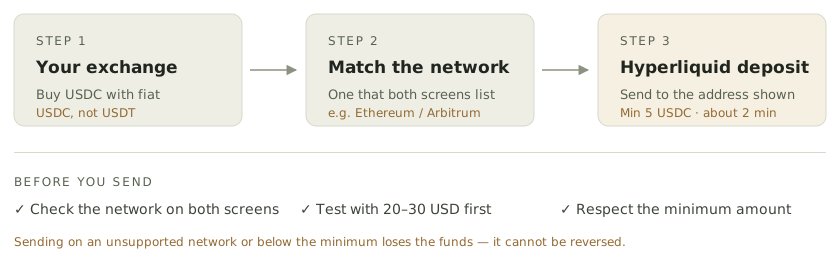
- In Hyperliquid click Deposit. Choose the sending network and it shows that network's deposit address and minimum amount. Keep this screen open for the next steps.
- Buy USDC on your exchange. USDC, not USDT.
- On the exchange's withdrawal screen choose USDC and look at the list of networks it can withdraw on.
- Choose a network that appears on both screens (step 1 and step 3). Hyperliquid accepts USDC on Arbitrum natively and on several other networks through its bridge partner; Arbitrum is usually the cheapest and fastest.
- Copy and paste the address, then check once more that the network matches on both sides.
- Send a small amount first. Test with about 20–30 USD, confirm it shows up in your Hyperliquid balance, then send the rest. It usually arrives within 2 minutes.
- Match the network. Sending on a network that is not listed cannot be recovered; the deposit screen carries the same warning.
- Respect the minimum. Deposits below the minimum (for example 5 USDC on Ethereum) are lost.
- Test with a small amount first. A few dollars of fees is cheaper than losing everything.
Deposits carry a small fee. In the example we checked, it was 0.01% of the amount plus a fixed 0.27 USD. Deposits from networks other than Arbitrum are handled by an external service (Across), and its conditions and fees can change, so verify the numbers on your own screen before sending.
Some exchanges limit transfers to personal wallet addresses under anti-money-laundering rules (the travel rule). If a withdrawal is blocked, follow that exchange's support guidance. Network lists and fees change, so checking both screens at the time of sending is the only reliable method.
Once the money arrives your balance shows at the top right of the Hyperliquid app, usually within a few minutes.
05 / API WALLET
Create an API wallet
For the program to place orders on your behalf it needs an order-only key. This key can place orders but cannot withdraw, which is why you give the program this key rather than the main private key that can move funds. If it leaks, someone could still place bad orders on your account and cause losses, so never send it to anyone and, if you suspect exposure, delete that API wallet immediately on the official app's API page.
- In the Hyperliquid app open More at the top and choose API, or go straight to app.hyperliquid.xyz/API ↗.
- Enter a name in the left field, e.g.
itsai. Leave the address field on the right empty and click Generate; a new wallet is created. - Copy the private key shown on screen to a safe temporary place. Once you close this screen you cannot see it again.
- Click Authorize API Wallet to finish. A wallet that is generated but not authorized cannot place orders.
- Also note your account's public address, a long string starting with
0x.
Only the API wallet private key created here goes into the program. The email account's own private key (shown under Export wallet) can move funds. Never send it to anyone. Anyone asking for keys by chat or email is a scammer.
06 / GET STARTED
Get started
ITSAI is a Windows desktop app that runs strategies on Hyperliquid. This website introduces the product and explains how to use it; trading happens in the installed app.
- If you do not have the app yet, ask for beta access through the operator's KakaoTalk open chat (Korean) ↗. Prepare the latest build you received and close any older version that is running. Release status
- Have a Hyperliquid account and an authorized API wallet ready. If this is new to you, start from 01 What is Hyperliquid. Connect a wallet
- Approve the builder fee and check the balance of the market you will trade.
- Check each strategy's budget and leverage and, at first, watch signals and settings in paper mode.
- If you choose live trading, start it from the dashboard and watch status and activity.
If Windows shows a warning on first launch
The first time you run the file, a blue “Windows protected your PC” box may appear. Windows shows it for any new program without a code-signing certificate; it does not mean a virus was found.
- Click More info in the box.
- Click the Run anyway button that appears.
- It may appear once for each new version; run it the same way.
Run only files you received directly from the ITSAI operator. Do not run a same-named file from another site or person. The file is itsai-terminal.exe. To verify it, run Get-FileHash itsai-terminal.exe in PowerShell and compare the SHA-256 with the value published alongside the file.
The US-stock strategy trades xyz stock-linked perpetual contracts; you do not acquire ownership of shares. Leveraged trading carries the risk of losing principal and of forced liquidation.
07 / CONNECT
Connect a wallet
Check your account and create and authorize the API wallet in the official Hyperliquid app ↗. In the terminal's settings, enter the network, your main wallet's public address and the authorized API wallet's private key.
| Field | What to enter |
|---|---|
| User address | Public address of the main wallet that holds the balance |
| API private key | Key of the API / agent wallet authorized for trading |
| Network | Mainnet (default), trading with real funds. Testnet is not supported. |
The API wallet and the main wallet have different roles. The trading API key alone cannot approve the builder fee on the main wallet's behalf. Browser-wallet users connect the same main wallet to approve; email-account users use the in-app approval below.
After saving, check connection status and live-trading readiness. A failed lookup does not mean the connection or the approval is complete.
08 / EMAIL WALLET
Approving with an email wallet
Email accounts work too. To approve without MetaMask, you perform a one-time signature inside the installed app with the email wallet's main private key. Logging in by email alone does not approve anything automatically.
- Log in to the official Hyperliquid app with your email account.
- Open the Export wallet screen.
- Use Copy key to copy the private key. Copy Phrase is the recovery phrase and is not used here.
- On the strategy engines screen, untick Enable on every engine set to live (pressing Stop alone does not open the approval dialog), then open Email wallet approval · in app on the settings tab.
- Confirm the public address matches your account, paste the key into the one-time approval field, read the fee notice and approve.
- Re-check the approval result and readiness, then re-enable the engines you want live.
The main private key controls your assets. Do not send it by chat or email or paste it into the API-key field. Beware of fake sites that ask for keys, and clear your clipboard after signing.
09 / COLLATERAL
Check balances per market
In a Standard account, spot, the default perpetuals and xyz can have separate collateral. Do not assume USDC moved into default perps is available for xyz trading.
- Crypto strategies: check the available collateral of the default perpetuals account.
- xyz instruments in US Stock RS and PVWAP: select the xyz market and check its balance and margin. A Standard account must fund default perps and xyz separately; without an xyz balance only xyz orders are rejected. A Unified account shares one USDC balance across coin and xyz orders.
- Spot balance: keep it separate from collateral usable for perp orders.
Transfer in the official Hyperliquid app after confirming the account mode and destination. Even when the terminal shows an account total, a specific market can lack orderable collateral. Also account for margin tied up in existing positions and open orders.
10 / STRATEGIES
Strategy settings
The current line-up is six strategies, including PVWAP and Crash Buy. Strategies may be added, improved or removed as development and review continue, so check the list in your installed version.
On the strategy engines screen, enable the engines you want and set paper or live mode, budget and leverage. Paper mode records signals without placing real orders.
| Strategy | Core rule | Market |
|---|---|---|
| 4H Trend Following | Direction of 30-day momentum, ATR-based exit | Crypto |
| Dual Thrust | Breakout of bands computed from recent daily ranges | Crypto |
| US Stock Relative Strength | Long-term relative-strength ranking and holding-period rules | xyz stock perpetuals |
| Weekly Cross-Sectional Momentum | Recent-return comparison with weekly rebalancing | Crypto |
| PVWAP · Passive VWAP Reversion | Drop below 5-minute VWAP, limit long entry | Crypto · US-stock, index and commodity perpetuals |
| Crash Buy “Wonyotti-style” (beta) unrelated to Wonyotti · see below | Market buy when volume fades after a 15-minute crash on 1-minute bars, one limit buy lower | Crypto |
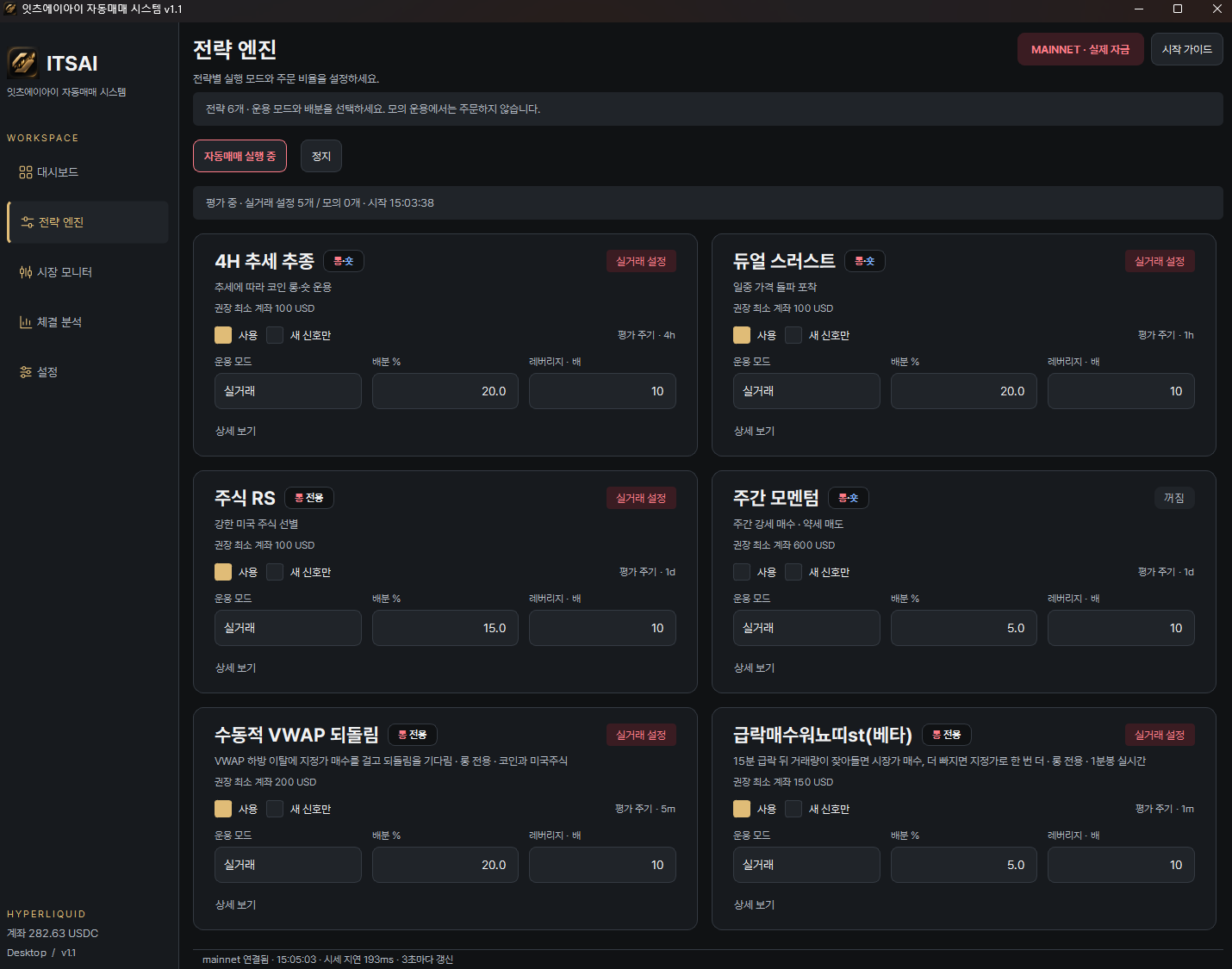
PVWAP · Passive VWAP Reversion
Targets crypto plus US-stock, index and commodity-linked perpetuals (S&P 500, crude oil, gold and silver, semiconductor ETFs and more). It does not overlap the instruments traded by US Stock RS, and it does not hold shares. On 5-minute bars it evaluates the drop below the day's VWAP. When the condition is met it rests a post-only limit buy 0.80% below the close — long only. If unfilled after 30 minutes it cancels and does not re-quote.
The current defaults are a 1.00% take-profit, 4.00% stop-loss and an 8-hour maximum hold, measured from the entry price (adjusted on 2026-10-02 from a Hyperliquid 5-minute backtest). The take-profit is a resting limit order at the target. Re-entering the same instrument waits 130 minutes. Fees, slippage and actual fills change the outcome.
Crash Buy “Wonyotti-style” (beta)
An algorithm built by analysing four years of trading records of Wonyotti, a trader known for large crypto profits. Still in beta. Wonyotti was not involved in developing it, does not endorse this strategy or ITSAI, and has no relationship with ITSAI. His past profits say nothing about this strategy's performance.
It streams 1-minute bars for 43 coins. When a coin drops sharply relative to its own volatility within 15 minutes and volume spikes then starts to fade, it buys at market at the next 1-minute open. It then rests a post-only limit buy for 5 minutes at a lower price than that fill. Long only.
The two buys are exited separately: take profit on a volume-backed bounce; if still losing 4 hours after entry, close at market and rest that coin for 24 hours; after 8 hours close regardless. At most 3 coins at a time. In case the program is off, a stop order sits on the exchange 12–30% below the first fill (depending on the coin's volatility). That distance is in price terms, so at 10× leverage a stop costs 1.2–3× the budget assigned to that buy, and fills during a crash can be below the stop price.
Right after enabling, it downloads three days of 1-minute history per coin and watches no signals for about 20 minutes. Because trades are short, fees and fill latency matter a lot, and on a day of rolling crashes several coins can lose at once.
Orders rest as limits first, then go to market
Entries of 4H Trend, Dual Thrust, US Stock RS and Weekly Momentum, and every strategy's rule-based exit, are first placed as post-only limit orders at the best bid or ask. If they are not filled within 10 minutes they are cancelled and re-sent at market. Maker fills pay a lower exchange fee than taker fills (0.015% vs 0.045%). Stops always stay market triggers, and the first buy of Crash Buy and any order you place by hand go out immediately without this wait. A resting order shows its engine and elapsed time in the open-orders table.
Check budget and leverage together
Keep the sum of allocation % across live engines at 80% or less. Exceeding it does not block entries, only shows a warning in the start checks. But every order runs a check that keeps 20% of collateral free, so the more you allocate, the more orders can be rejected for lack of collateral. Check in the app whether the budget field is margin-based or per-order notional; settings saved by older versions may keep the old calculation, and the same percentage means a different order size depending on the basis.
The leverage you set is not applied unchanged to every instrument: each instrument's allowed leverage and your available collateral must be satisfied. Isolated-margin-only instruments (some xyz US stocks) are liquidated per position, so the app lowers leverage there until the stop comes before liquidation (for example, US Stock RS with its 20% stop uses at most 3x on a 10x instrument). The order size shrinks accordingly, and on a small account that instrument may be skipped for falling below the minimum order size.
The “new signals only” option
When enabled, the engine waits for signals that occur after start instead of immediately joining a trend already in progress. No order right away can be perfectly normal.
11 / RUN
Start and stop
Opening the app and starting the engines are different things. Press Start on the dashboard, then watch run status, readiness and recent activity together.
If “auto start” in settings is on (the default), and the app was closed or the PC turned off while trading was running, trading resumes about 3 seconds after the approval check when the app next opens — each strategy in its last saved paper/live mode. If you stopped with the Stop button before closing, it stays stopped. Turn the option off in settings if you do not want this.
- Running: engines are evaluating signals. It does not mean orders were filled.
- Waiting / HOLD: no entry condition, or waiting for the next evaluation time.
- Order results: check activity, open orders and positions for what the exchange actually did.

Stopping halts new strategy execution. Existing positions are not closed automatically and protective orders are not all cancelled. PVWAP's resting limit buys are not cancelled by Stop either, so review in-progress and open orders together.
It runs on a Windows PC without a server or VPS. For 24-hour operation the PC and app must be running, online and not asleep. Engines evaluate on their own schedules and conditions, so they do not always order. Even with protective orders on the exchange, there is no guarantee of the desired fill price in a sharp move.
12 / WORKSPACE
Reading the market monitor
Click a position row to open that instrument's chart. The timeframe switches so the entry is in view, the entry time is a vertical line (red for long, blue for short — Korean convention — with the engine name) and entry, stop, take-profit and liquidation prices are horizontal lines. Change the timeframe and moving-average display to follow price.
Chart controls: mouse wheel zooms, drag pans. Drag the right price axis to scale vertically and the bottom time axis to scale horizontally. Double-click or press “Latest” to reset.
| Column | Meaning |
|---|---|
| Size / entry / mark | Position size, entry price, current valuation price |
| Notional | The amount the position is exposed to, roughly absolute size × mark |
| Margin used | Collateral tied up by the position |
| Unrealised P&L | Open profit or loss |
| Open orders / fills | Orders still resting and records of actual fills |
Do not multiply notional by leverage again. A 1,000 USD notional already means that much market exposure. Margin and account balance are separate values.
13 / FEES
Fees and approval
There is no program fee and no monthly subscription. Free use is separate from actual trading costs, which apply as follows.
The terminal's builder fee is 0.04% of the fill notional of each order. PVWAP strategy orders (entry, take-profit, stop and exit) pay only 0.025%. The builder fee is paid to the operator's (ITSAI's) wallet, and the app blocks trading until it is approved. You approve this limit from your main wallet; the approval itself is not a deposit or a one-time payment.
Entering a 1,000 USD notional costs 0.40 USD in builder fee. Exiting the same amount costs another 0.40 USD, 0.80 USD in total. Exchange fees, funding and slippage are separate.
Calculate the fee for an amount
Entering and exiting the same amount costs 0.80 USD in total. PVWAP orders pay 0.025%. Exchange fees, funding and slippage are separate.
Exchange fee tiers and discounts can change; check the actual terms in your official Hyperliquid account. Distinguish the approved limit from the fee actually applied to each order.
14 / SECURITY
Keys and security
The trading API key is managed by the installed Windows app. The main private key used for the one-time email-wallet approval is not written to files or logs, though complete erasure from memory is not guaranteed.

- This public website has no wallet-connection or private-key forms.
- Remove private keys and recovery phrases from screenshots and logs you share for troubleshooting.
- If you suspect a key was exposed, check the wallet and its API permissions on the official service and act.
- Do not display keys during remote control or screen sharing.
This site has no sign-up and collects no trading data. The hosting provider may generate access logs in the course of serving pages.
15 / HELP
Troubleshooting
A “Windows protected your PC” box appears when I run it
Windows shows it for new programs without a code-signing certificate. Click More info then Run anyway. Do this only for files you received directly from the operator. Details
Live-trading readiness lookup fails
Check the internet connection, network selection, your public address and the API wallet's authorization. A failed lookup alone does not mean the fee approval was revoked. If it keeps failing, check account status in the official exchange app first.
I started but there are no orders
Check that the strategy is enabled, whether it is in paper mode, whether “new signals only” is on, the live allocation total (80% or less recommended) and collateral headroom. If the account is smaller than the strategy's recommended minimum, per-coin orders can fall under the 10 USD exchange minimum and not enter. No signal or unmet budget/collateral conditions mean no order. “Running” and fills are different states.
Which account types are supported?
Hyperliquid's “Unified” and “Standard” account types work. “Portfolio margin” is not supported; switch to Unified or Standard in the official app's account settings first. In a Unified account one USDC balance is shared by coin and US-stock (xyz) orders.
Only xyz orders fail
Check the xyz market's available balance, the instrument's maximum leverage and order conditions. Check the account mode to see whether xyz orders can use the default perps balance.
I see 429 or exchange call failures
The exchange may be rate-limiting or temporarily not responding. Do not keep pressing Start; wait for the retry. For an order with an unclear response, reconcile positions and open orders in the official app.
I see stop-order failure, emergency exit or safety halt
Do not keep trying to enter. Stop the engines and check actual positions and protective orders on the exchange. “Close requested” and “no position confirmed” are different. Do not clear the safety halt or restart repeatedly before the cause is resolved.
I updated but the screen looks the same
Check that the old app was closed and that the shortcut points at the new executable. Running executables from several folders can open an old version; keep one location.
16 / RELEASE
Releases
Beta testers are welcome until December 31, 2026.
The beta can be used without a program fee or subscription. Actual trading fees apply.
Beta access is currently handled through the operator's KakaoTalk open chat (profile name 잇츠에이아이), in Korean. The website does not distribute the executable directly. Follow the Telegram channel for announcements.
Telegram channel ↗Never send private keys or recovery phrases to anyone.
When updating, check engine state and open positions, close the old app and run the new version. If you close the old app while trading is running, the new version resumes trading when it opens. To start stopped, press Stop first, then close. Installing a new version does not close existing positions.
17 / TOOLS
Checks, alerts and updates
Start checks
The start checks at the top of the settings tab show every item needed before the first trade as ✓/✗: wallet connection, mainnet, account type, deposit, each engine's recommended minimum account, xyz collateral for Standard accounts, service-fee approval, allocation total and whether trading is running, with what to do under each ✗. It also shows which engines your account size can run and which are still too early. It recalculates every 10 seconds from data the app already has, without extra exchange calls.
Your own Telegram alerts (optional)
Under settings → Telegram alerts you can receive fill notifications, position snapshots (every 1 hour, 4 hours or daily) and a weekly report every Monday at 09:00 KST through a Telegram bot you create.
- Send
/newbotto @BotFather in Telegram, paste the token you receive and press “Save token” - Send any message to your bot, then press “Find chat ID”
- Press “Send test” to confirm a message arrives
The bot token is stored in the Windows Credential Manager and alerts go only to your bot and chat; the operator does not receive them. Do not share the bot token.
Official Telegram channel
The @itsai_terminal ↗ channel posts entry signals (instrument, direction, reasoning, signal-bar close, stop level) from the strategies actually running on the operator's account, plus rule-based market context (1-hour and 4-hour trend, volume), right after each signal. Resting-order signals are kept short and anything that is not a confirmed fill is labelled as such. Balances and profits are not posted, and whether a user's account places the same order depends on its allocation and balance. It is reference material, not investment advice. Posts are in Korean.
Weekly report
“View weekly report” under settings → Support shows the last 7 days of fills per engine: realised P&L, fees (exchange and app), net and traded volume. It is based on fills the app received and excludes unrealised P&L.
Updates
At launch and every 6 hours the app checks this website for the latest version and, if there is one, notifies you in the sidebar and under settings → Support. It does not download or install anything by itself. Get the new file from the operator, compare its SHA-256 (via PowerShell Get-FileHash) with the value shown in settings, and run it only if they match. Settings and history live in the itsai-data folder next to the exe, so replacing the exe in the same folder keeps everything; keys stay in the Windows Credential Manager. Follow the order in Releases.
Problem report file
If something goes wrong, press “Create problem report” under settings → Support. An itsai-report-date.zip appears on the desktop containing settings, engine state and part of the recent engine and fill records; keys are excluded and wallet addresses are masked as 0xUSER. Send it with your enquiry so the cause can be checked.
Preventing sleep
While trading is running, the app prevents Windows from entering sleep. It does not prevent the display from turning off. A laptop may sleep when its lid closes depending on power settings, so set “When I close the lid” to “Do nothing”. Power cuts, reboots and internet outages cannot be prevented; stop orders resting on the exchange survive a PC shutdown.
The data folder and moving to another PC
On first launch the app creates an itsai-data folder next to the exe and stores strategy settings, engine state (which position belongs to which strategy, resting orders), fill and activity history and window layout there. Keep the exe and this folder together on a USB or cloud drive and you can continue on another PC. The agent key and Telegram bot token live in that PC's Windows Credential Manager, not in the folder, so they must be re-entered on another PC (by design, so keys are not left on shared PCs). If the exe's location is not writable (e.g. Program Files), the app falls back to %LOCALAPPDATA%\itsai-terminal.
Environments that reset on reboot, such as internet cafés, are not recommended. The folder on a USB keeps settings and state, but while the app is off there are no new entries and no strategy exits — only the stop orders resting on the exchange remain. Run it on a home PC that stays on or on a Windows VPS.